Everything from install to your first attributed sale — with screenshots at every step. Total setup time: about 5 minutes.
Jump to: Adding videos · Tagging products · Theme editor · Selling tools · Embed anywhere · Statistics · Launch checklist
Add Virally from the Shopify App Store. It asks only for read access to your products — it never writes to your catalogue or theme files. After install the app opens on the Videos page.
Copy any public TikTok or YouTube link (regular videos and Shorts both work), paste it into the Add a video box and press Add. Virally pulls in the thumbnail and author automatically — no API keys, no social login.
Press Bulk import to paste many links (one per line). A YouTube channel URL (…/@yourhandle) or a playlist URL automatically adds its latest videos — up to 40 per import.

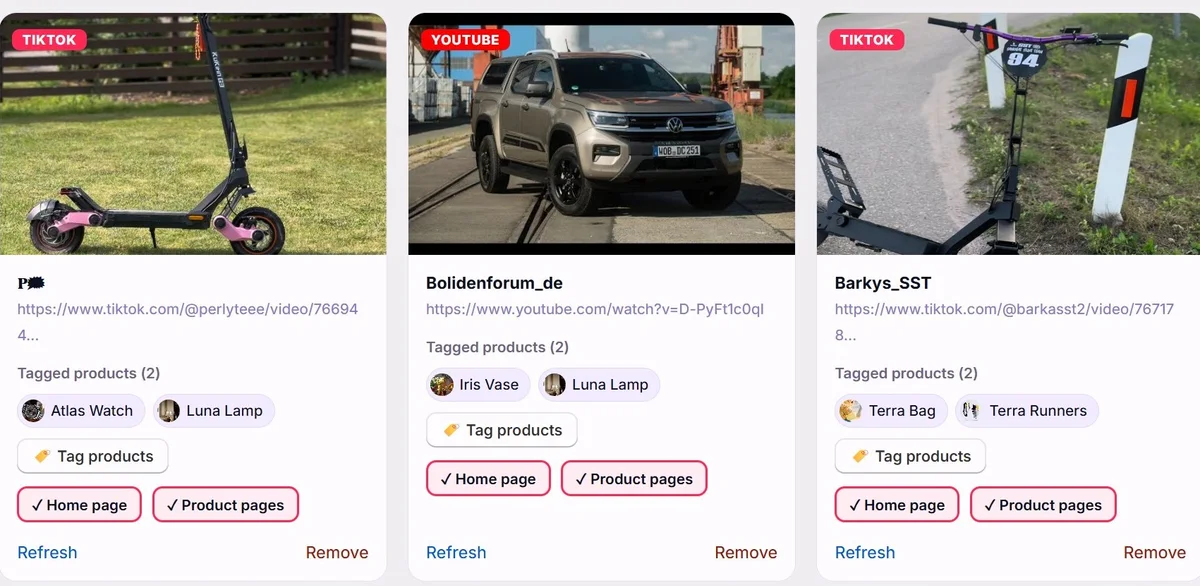
Every video you add appears as a card. Press 🏷️ Tag products and pick the items that video features. These become the tappable buy buttons under the video on your storefront — shoppers can add them to the cart without leaving the page.
The Home page / Product pages toggles control placement. A video marked for product pages automatically shows up only on the pages of the products you tagged in it.
Refresh re-fetches the thumbnail and author from the platform. Remove deletes the video from your store (the original clip on TikTok/YouTube is untouched).
Open Online Store → Themes → Customize. On the page where you want the wall (usually the home page) press Add section → Apps (or Add block → Apps) and choose “Shoppable videos”. Press Save — that’s the only required step.
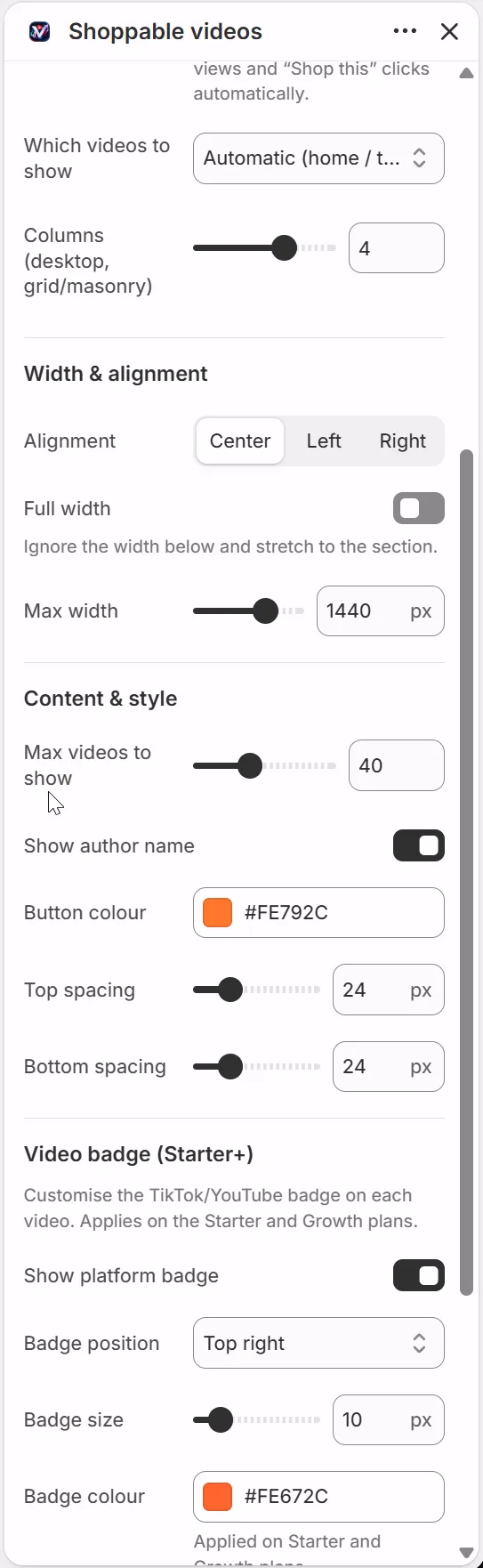
In the block settings choose one of 10 layouts — Grid, Carousel, Stories bar, Hero, Marquee, Spotlight, Full-screen feed, Reels, Masonry or Bento. Set Order videos by to Best performing first and your highest-converting videos automatically move to the front.
Width & alignment — center, left or right, a max-width slider or full width. Videos shown before “Show more” — how many load at first (the button reveals more). Button colour matches your brand. On Starter and Growth you can also customise the TikTok/YouTube badge on each thumbnail — position, size and colour.
Product videos block: in the theme editor switch the top dropdown to Products → Default product, press Add block → Apps and choose “Product videos”. Each product page then shows only the videos tagged with that product.
“As seen on TikTok” badges: open App embeds (the puzzle icon on the left), switch on “As seen on TikTok badges” and save. Tagged products across your collections get a small badge automatically.
Floating video bubble (Growth): switch on the “Floating video bubble” app embed once, then control it from the app under Settings — on/off, position and label.
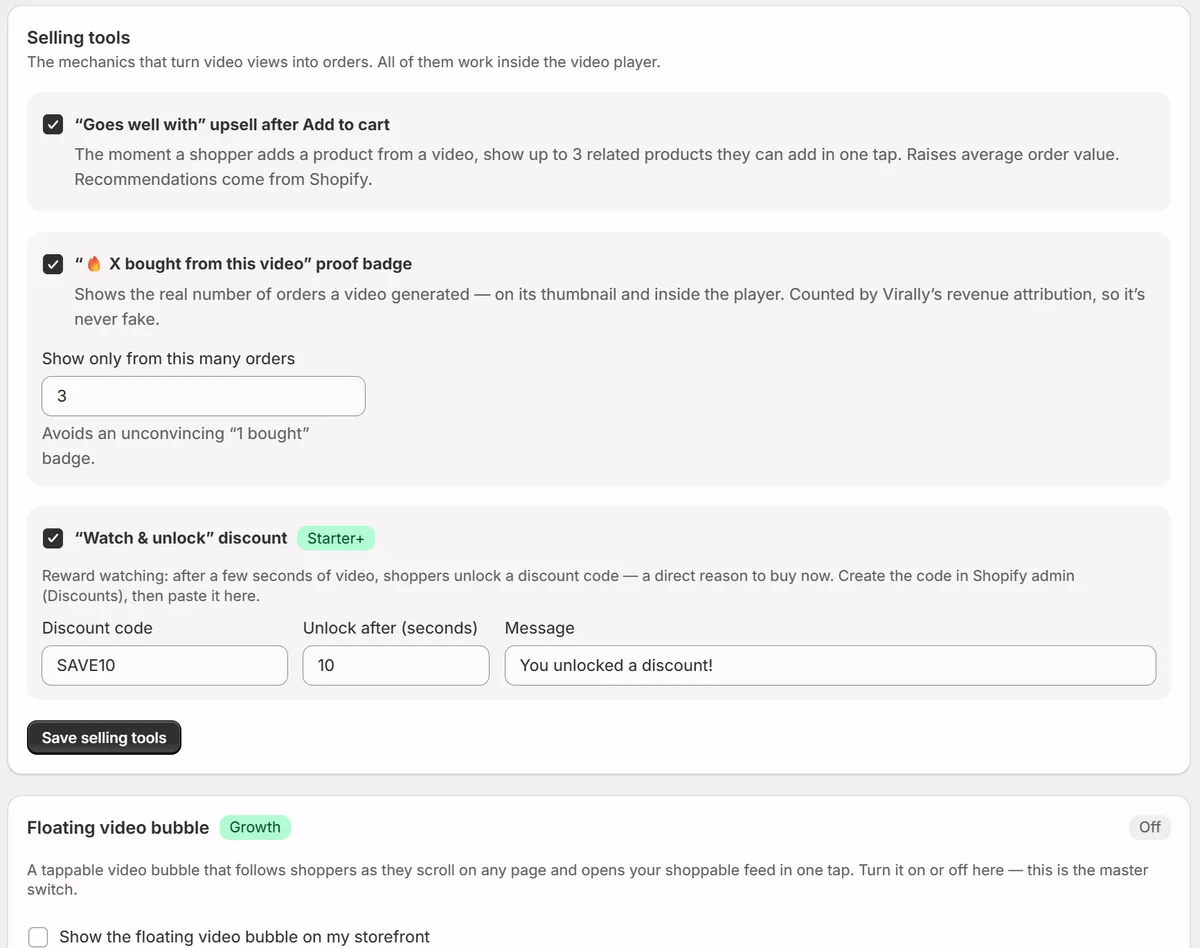
Open Settings in the app. These three mechanics run inside the video player and turn views into orders.
The moment a shopper adds a product from a video, the player offers up to 3 related products they can add in one tap. Recommendations come from Shopify. On by default.
Shows the real number of orders each video generated — on its thumbnail and inside the player. It is counted by Virally’s revenue attribution, so it is never fake. Set the minimum orders before it appears (default 3).
Create a discount code in Shopify admin under Discounts, then paste it here and choose how many seconds of watching unlock it. Shoppers who watch get the code in the player — a direct reason to buy now.
Put your videos — with tappable product links — on a blog, a landing page, a forum or your Shopify blog. Shoppers watch anywhere and land on your product pages to buy.
On any video card in the Videos tab, press Embed. A window opens with two boxes.
This is a single <iframe>. It works everywhere on its own, and its height is already sized to fit the products you tagged in that video. Paste it wherever you can add HTML.
A tiny auto-resize <script> that makes the height fit perfectly. Add it next to the embed on sites that allow scripts. Skip it on sites that strip scripts (many blogs and forums) — the embed still works fine without it.
| Where it works | What to paste |
|---|---|
| Your own website / a website builder (Webflow, WordPress, etc.) | Box 1, plus Box 2 for a perfect fit |
| A Shopify blog article (or a page with a custom-HTML section) | Box 1 (Box 2 optional) |
| A forum or comment that allows HTML | Box 1 only |
The product buttons in an embed open your storefront product pages in a new tab (with a tracking tag), so you keep the sale. Every embed also carries a small link back to Virally, which helps more people discover shoppable video.
Open Activity in the app — this is where you see whether the videos actually sell.
| Metric | What it means |
|---|---|
| Revenue | Money from orders that started with an in-player “Add to cart” — attributed to the exact video that drove them |
| Orders | Number of those attributed orders |
| Views | How many times shoppers opened your videos on the storefront |
| Shop clicks | Taps on the product buttons under a video |
| Click rate | Clicks ÷ views — how convincing a video is |
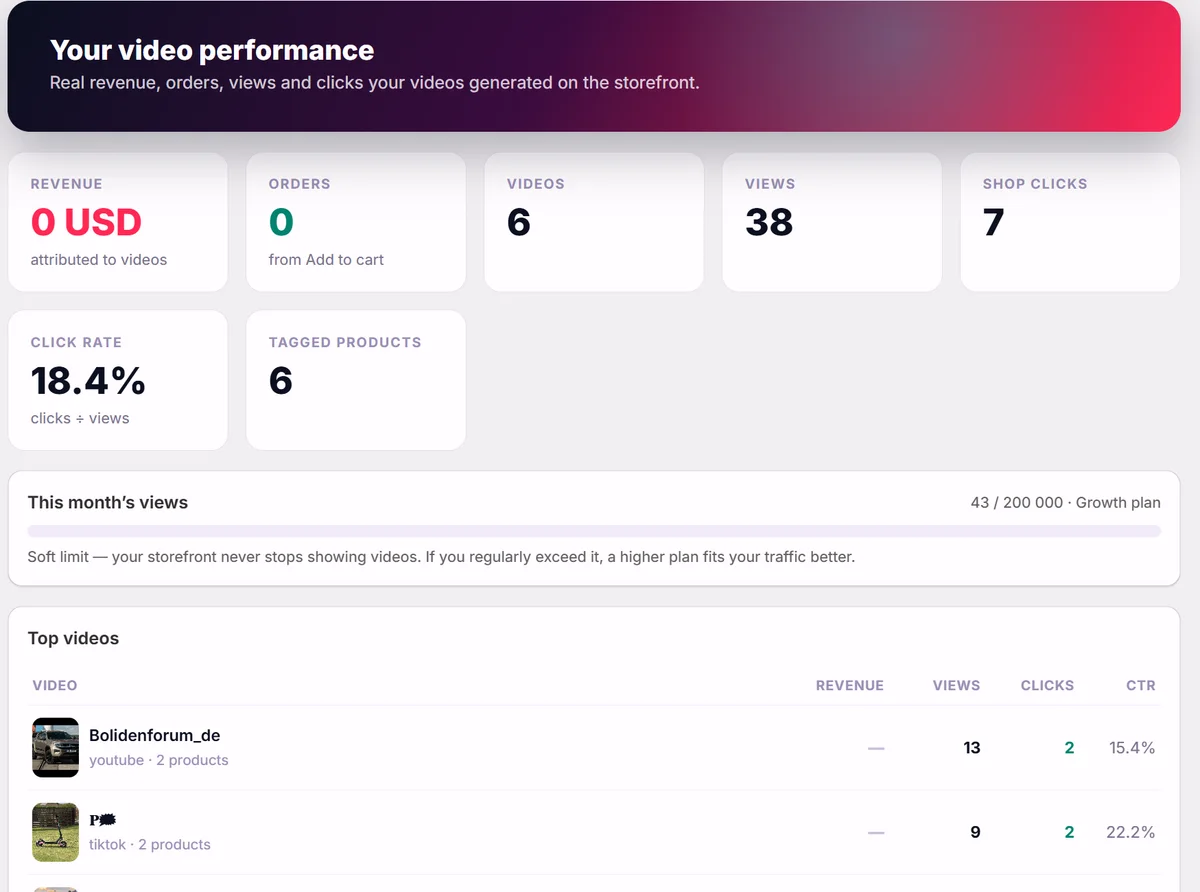
The monthly views bar tracks your plan’s soft limit. It is soft on purpose — your storefront never stops showing videos; if you regularly exceed it, a higher plan simply fits your traffic better.
At least a few videos in the app, each with 1+ tagged products.
“Shoppable videos” added via the theme editor and the theme saved — this is the step people miss most often.
It should play instantly and show the tagged products underneath.
Press the product button in the player — the item should land in the cart and the cart should update without a page reload.
Badges on tagged products, the unlock discount after watching, the floating bubble (Growth).
Views, clicks and the first attributed orders appear as shoppers use it.
| Surface | What it does | Where to add it |
|---|---|---|
| Shoppable videos block | A tappable wall of your videos; 10 layouts, “Show more” batching | Theme editor → Add section/block → Apps |
| Product videos block | Shows only the videos tagged with that product | Product template → Add block → Apps |
| “As seen on TikTok” badges | A small badge on products that appear in a video | Theme editor → App embeds |
| Floating video bubble | A tappable bubble that opens your shoppable feed (Growth) | App embeds once, then app → Settings |
Check the block first: Online Store → Themes → Customize → Add block → Apps → Shoppable videos must be added to the page and the theme must be saved. This accounts for almost every case.
The source clip was made private or deleted on TikTok or YouTube, so its embed no longer resolves. Remove that link in Virally, or make the original public again.
Open that video in the Virally app and confirm you have tagged at least one product. Only tagged products appear as shoppable buttons under the clip.
In app → Settings the “Watch & unlock” switch must be on and a discount code entered — without a code nothing is shown. It appears once per browsing session after the set number of seconds; afterwards it collapses into a small 🎁 button in the player.
The badge surface is a separate switch: Online Store → Themes → Customize → App embeds → As seen on TikTok badges must be on, and the theme saved.
Two switches control it: the “Floating video bubble” app embed in the theme editor (one-time), and the master switch in app → Settings. It is a Growth-plan feature, and it needs at least one video marked for the home page.
Remove the blocks in the theme editor, or uninstall the app. Uninstalling deletes the stored video links and their oEmbed data and all shop data from our servers. Nothing was written into your theme files, so nothing is left behind.
 Virally